BPMN Process Viewer
Core Features
The BPMN Process Viewer is an interactive component that allows you to explore and understand your business processes. At its core, it consists of four main elements:
- The Process Explorer - for viewing and navigating processes
- Visibility Controls - for managing linked item visibility
- Element Details Display - for accessing detailed information
- Controls - for zooming, toggling the visibility of linked items via the eye icon, and switching to the process table view
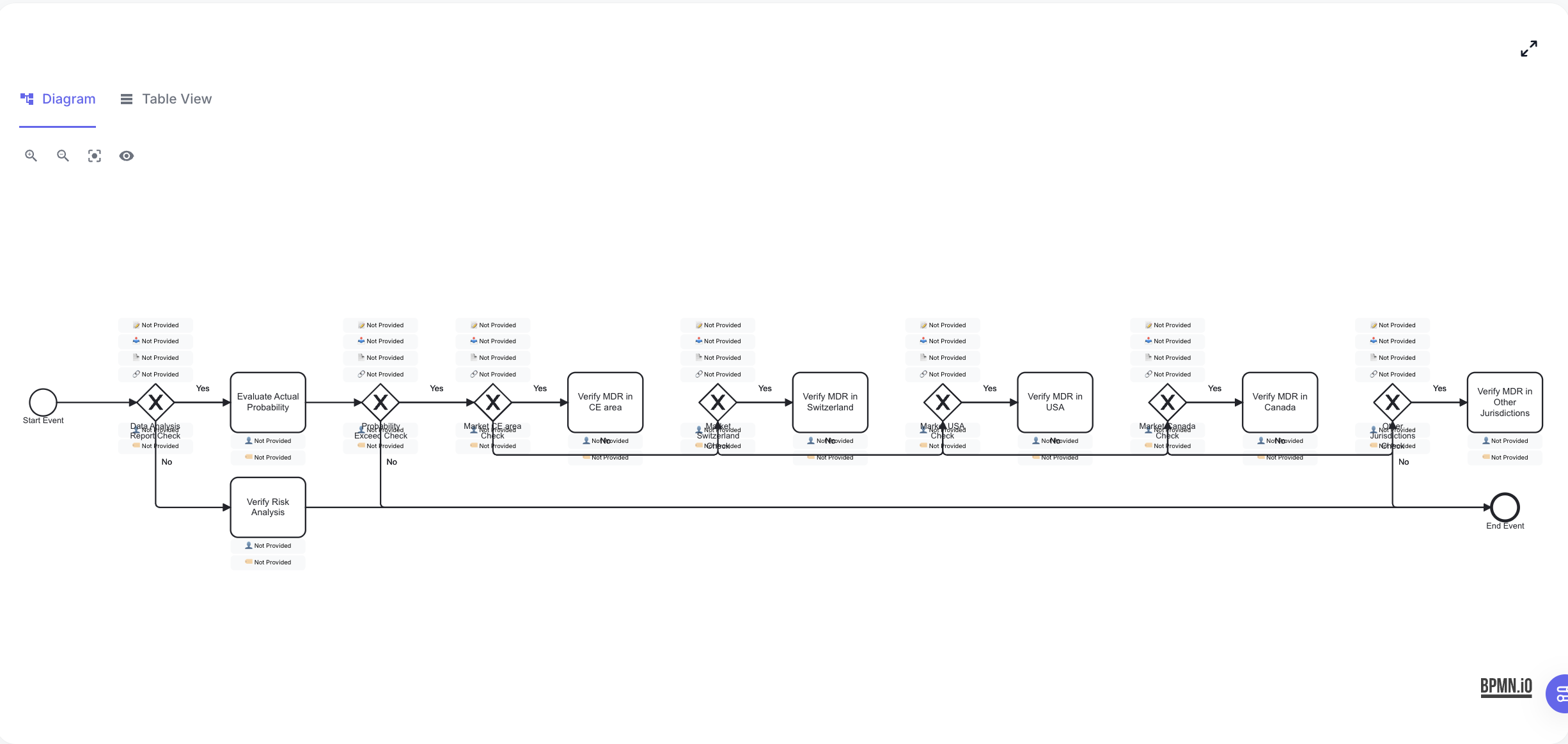 The main Process Viewer interface showing a complete business process with linked items displayed above process steps. The visibility controls are visible at the top, and the fullscreen button is located in the top-right corner. The top-left controls also allow you to zoom, toggle the visibility of linked items using the eye icon, and switch to the process table view. Example of linked items shown above a process step. Each icon represents a different type of linked item (forms, documents, SOPs, etc.), with consistent positioning and clear visual hierarchy.
Process Explorer
The central part of the viewer is the Process Explorer, where you can:
- Navigate through your main process and its subprocesses
- Pan and zoom to explore different areas (using the top controls)
- Click on process elements to view details
- See linked items displayed above each process step
- Switch to the process table view using the control in the top bar
Element Details Display
When you click on a process step, the detail display opens. This panel presents the details of each step according to the turtle model, including:
- Input: What is required to start the step
- Output: What is produced or changed by the step
- Description: The purpose and context of the step
- User and Role: Who is responsible for the step
- References: All linked items, such as templates, forms, or documents
This visual approach helps you:
- Quickly identify which steps have associated documentation and resources
- Access related content with a single click
- Understand the process flow and dependencies at a glance
Visibility Controls
The control panel at the top of the viewer lets you customize which linked items are visible, and the top controls (eye icon) provide quick access to toggle the visibility of all linked items. You can also switch between the diagram and table views for different perspectives on your process:
Toggle visibility for:
- 📝 Forms
- 📄 Documents
- 📋 SOPs
- 👤 Users
- 👥 Roles
- 📖 Work Instructions
- 📑 Templates
- 🧠 Knowledge Topics
Use the zoom controls in the top bar to adjust your view of the process diagram. Use the table view toggle to see your process in a structured, tabular format.
See Element Details
Clicking any process element opens a detailed information panel. Here, all metadata and linked items for the element are shown, structured according to the turtle model (input, output, operations, etc.). All links can be seen and the references can be clicked to open the linked items.

The element details panel shows comprehensive information about a selected process step, including input, output, linked operations, user/role, and references as defined by the turtle model. The panel includes metadata, descriptions, and a list of all linked items with "Visit" buttons for easy navigation. The data can be edited in the Process Editor.
Subprocess Navigation
To explore subprocesses within your main process:
-
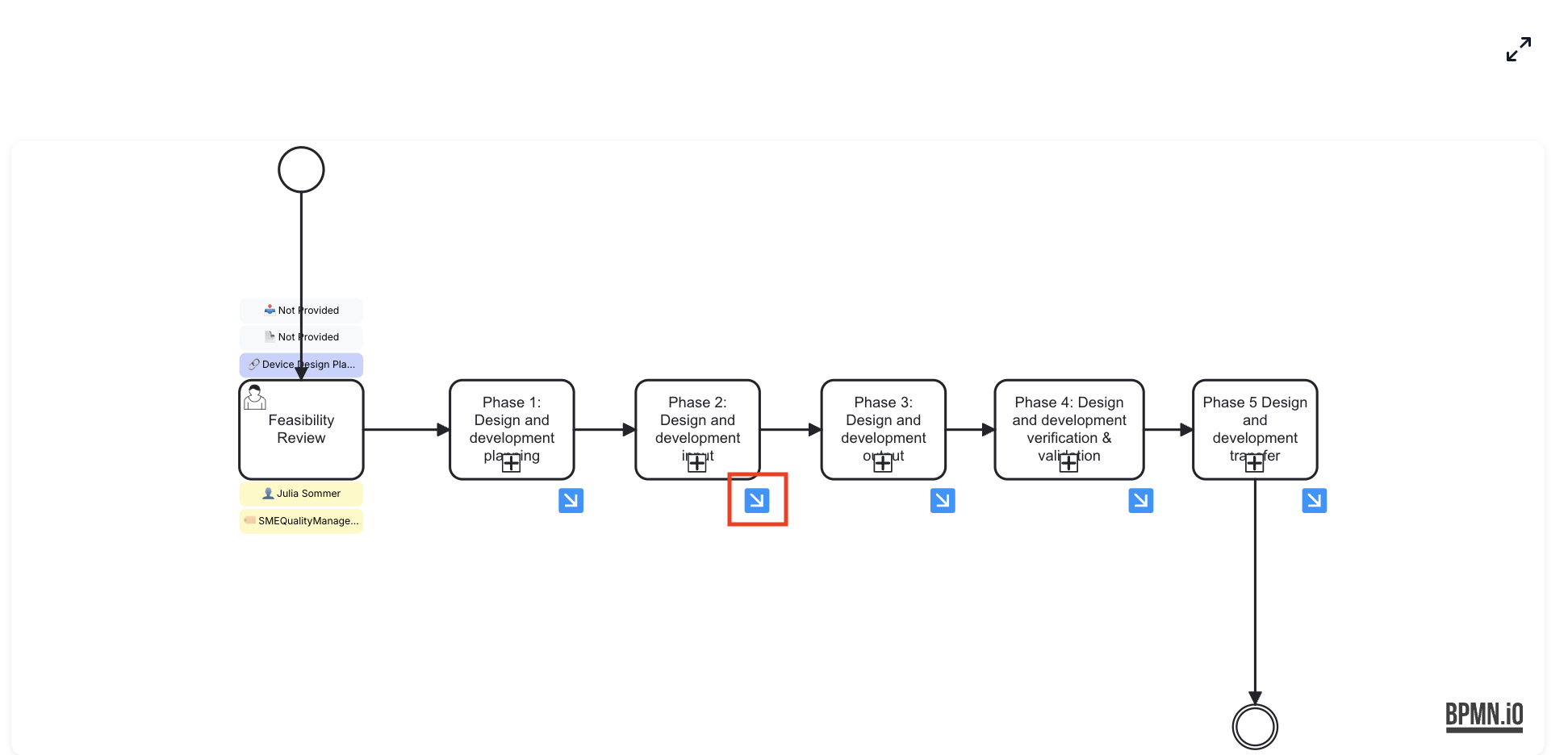
Look for process steps with a small icon in the bottom-right corner - this indicates a subprocess
-
Click the icon to navigate into the subprocess
-
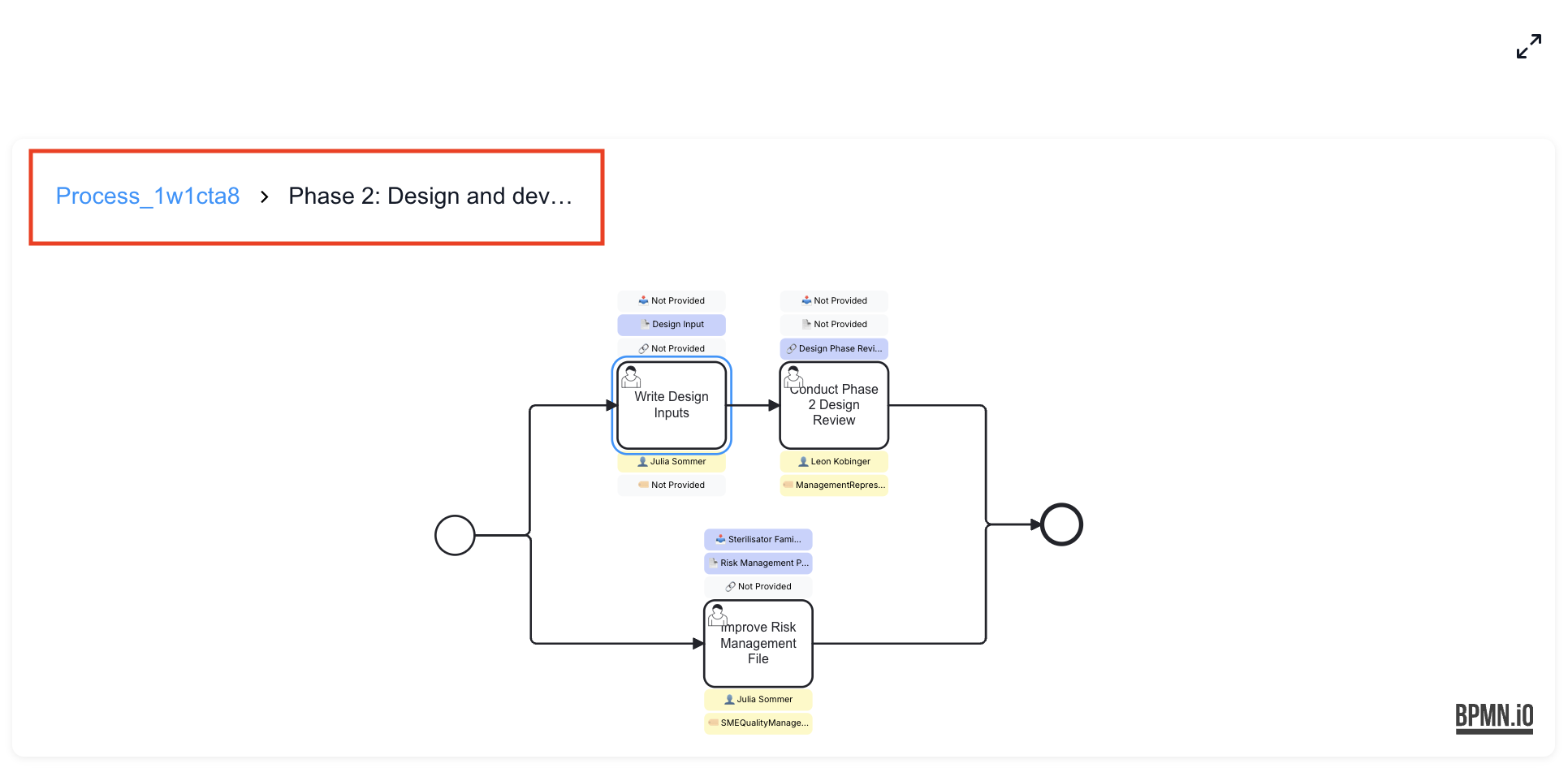
Use the navigation breadcrumb in the top-left corner to track your location
-
Click on any level in the breadcrumb to return to that process level
While subprocesses can be nested arbitrarily deep, we recommend limiting nesting to a maximum of 2 levels for clarity and maintainability.
Use the zoom controls in the top bar to adjust your view of the process diagram. Use the table view toggle to see your process in a structured, tabular format.
Table View
The Process Viewer offers an alternative tabular representation of your process alongside the traditional diagram view. You can switch between these views using the "Table View" tab in the top control bar.
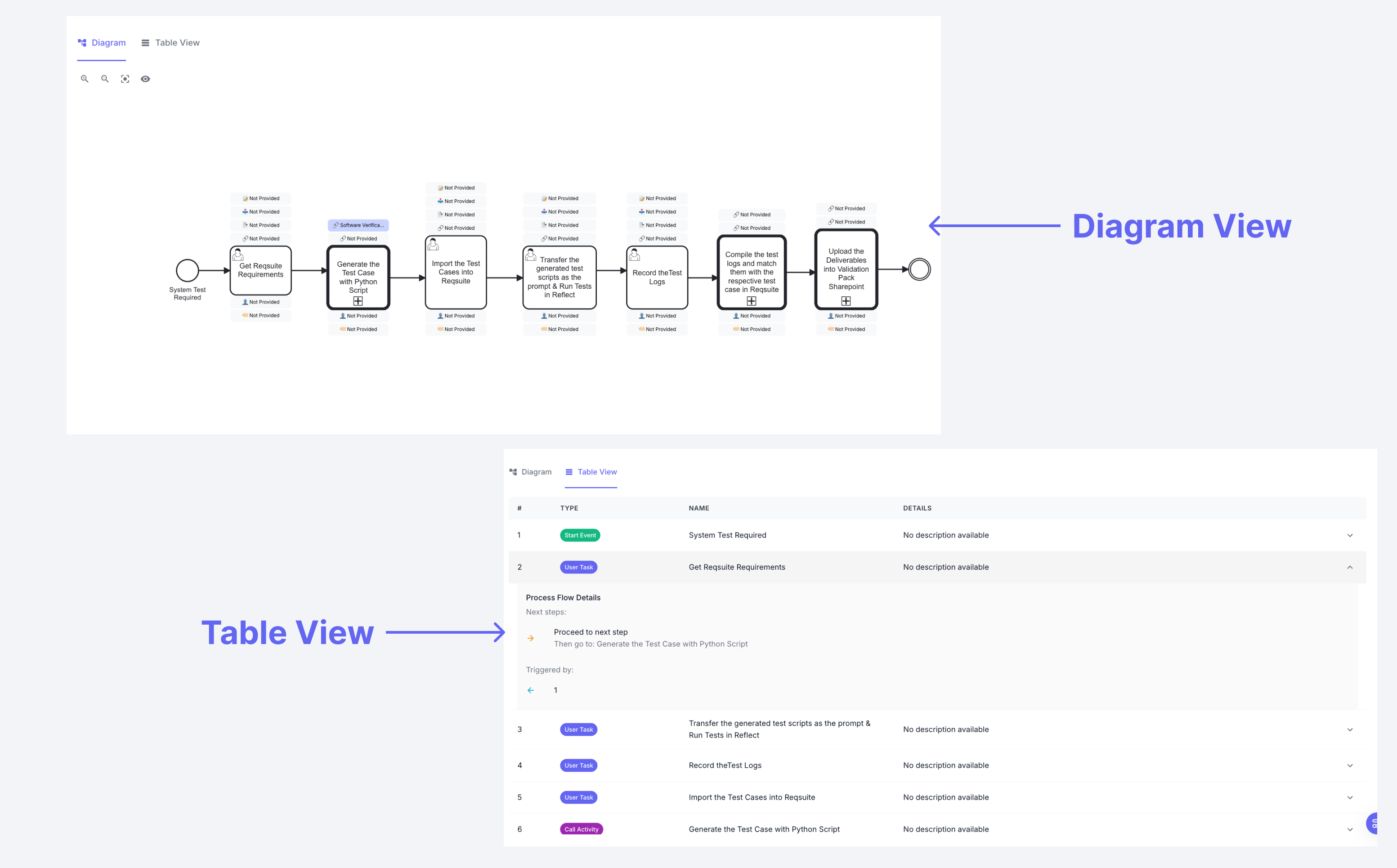
Table View Overview
The table view presents your process elements in a clear, structured format with the following columns:
- #: Sequential numbering of process elements
- TYPE: Visual indicators showing the element type (Start Event, User Task, Call Activity, etc.)
- NAME: The descriptive name of each process step or element
- DETAILS: Additional information and descriptions for each element
Expandable Process Flow Details
Each row in the table view can be expanded to reveal additional process flow information by clicking the toggle arrow. When expanded, you can see:
- Process Flow Details: Information about the current step's role in the overall process
- Next Steps: What actions follow this step, including specific step names and destinations
- Triggered By: Which previous steps or elements trigger this particular step
- Flow Connections: Visual indicators showing how this step connects to others in the process
This expanded view provides a detailed understanding of how each element fits into the broader process flow without needing to trace connections in the diagram view.
Benefits of Table View
The tabular format provides several advantages:
- Linear Overview: See all process steps in sequential order without needing to follow the diagram flow
- Quick Scanning: Easily scan through step names and types to locate specific elements
- Detailed Flow Information: Expand any row to see process flow details, next steps, and triggers
- Element Classification: Quickly identify different types of process elements through visual type indicators
- Process Relationships: Understand step dependencies and connections in a structured format
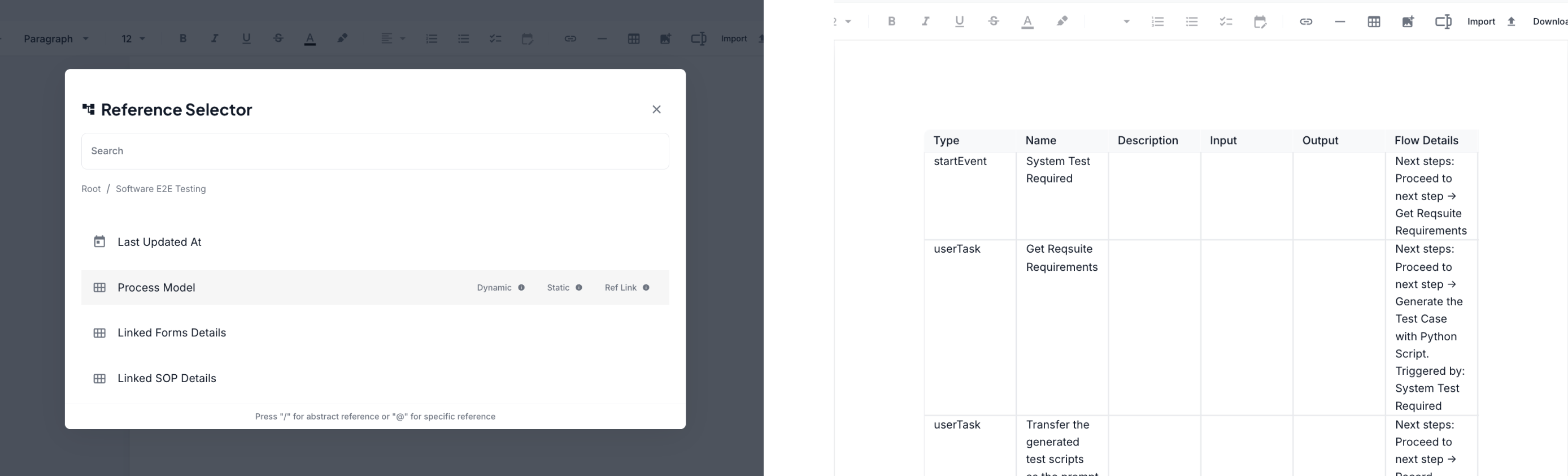
The table view can be used as a reference when working in the Text Editor, providing a structured overview of process steps that can be easily referenced when writing documentation or creating process-related content.
Fullscreen Mode
Use the fullscreen mode when working with complex processes or when you need to present to others.
For an immersive view of your processes, use the fullscreen button in the top-right corner:
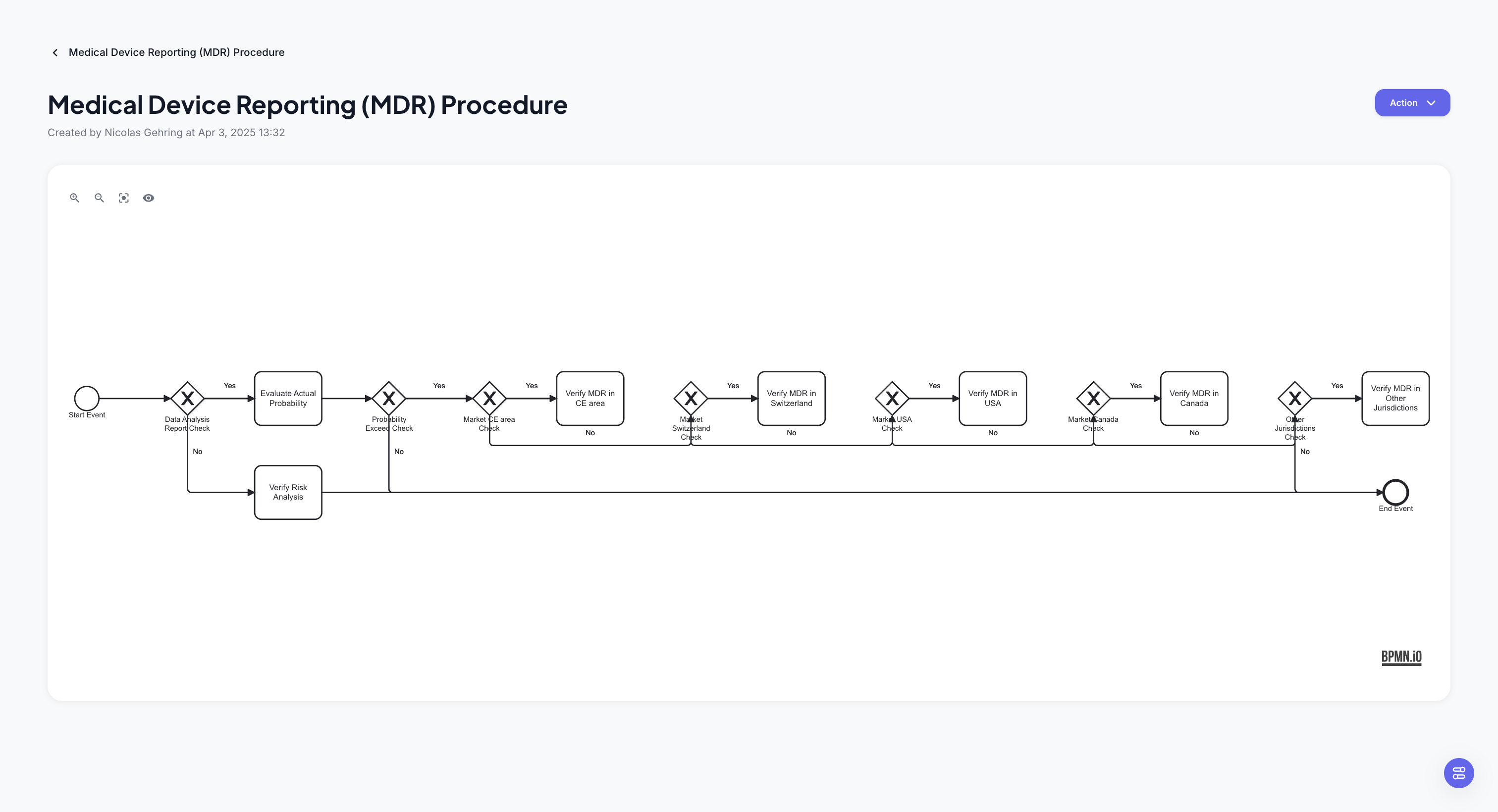 The Process Viewer in fullscreen mode, showing the expanded view of a complex process. The exit fullscreen button is visible in the top-right corner, and all navigation controls remain accessible.
Tips for Effective Use
Toggle off unneeded item types when focusing on specific aspects of your process. This makes it easier to focus on relevant information.
When revisiting a subprocess, the viewer will restore your last saved viewport position from the editor. If you want to change this default view position, simply adjust it in the process editor and save - your new preferred view will be restored on future visits.
Technical Notes
The Process Viewer is a read-only tool. For making changes to processes, please create a draft and start editing.